


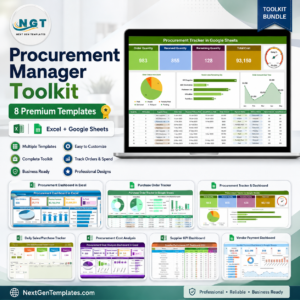
The Procurement Dashboard in Excel is a purchase reporting template for reviewing orders, quantities, supplier costs and pending payments. Its Dashboard, Detailed View, Data and Support sheets connect procurement records with summary cards, charts and slicers. Filter by year, month, supplier or category to examine spending and order activity.
Key Features of the Procurement Dashboard in Excel
1. Dashboard Sheet – Instant Overview of Procurement Data
The main dashboard provides a real-time snapshot of key procurement metrics using interactive charts and slicers.
✅ Summary Cards
- Total Orders – View the total number of purchase orders.
- Quantity Ordered – See the total quantity of items procured.
- Pending Payments – Track outstanding payments for better financial management.
- Total Cost – Get a consolidated view of procurement spending.
- Percentage Paid – Understand the proportion of payments completed.
✅ Slicers – Dynamic Filtering Options
- Filter by Year, Month, Supplier Name, and Category
- Quickly analyze historical trends and compare procurement activity over time.
✅ Visual Charts for Clear Insights
- Total Cost by Category (Pie Chart) – Get a cost breakdown of consumables, electronics, and furniture.
- Total Cost by Supplier (Arrow Chart) – Compare total procurement costs for different suppliers.
- Total Cost by Month and Year (Line Chart) – Identify cost fluctuations over time.
- Total Cost by Location (Bar Chart) – Pinpoint high-spending locations for better cost allocation.

2. Detailed View Sheet – Drill Down into Procurement Data
The Detailed View Sheet provides granular insights into procurement activities with pivot tables and filters.
🔍 View and filter procurement details, including:
- Supplier Names – See which suppliers are delivering the most orders.
- Category & Item Names – Analyze cost distribution across product categories.
- Quantity & Total Cost – Evaluate procurement cost-effectiveness.
- Procurement Officer & Status – Track approvals, cancellations, and pending orders.
📊 Why This Feature is Important?
- Helps in supplier evaluation based on past orders.
- Enables procurement officers to prioritize urgent orders.
- Enhances financial planning by analyzing category-wise spending.
3. Data Sheet – The Foundation of the Dashboard
The Data Sheet acts as the backbone of the dashboard, containing all raw procurement data.
📑 Data Fields Include:
- PO Number, Supplier Name, Item Name, Category
- Order Date, Delivery Date, Quantity, Unit Price, Total Cost
- Location, Procurement Officer, Status, Payment Terms, Payment Status
💡 How It Works:
- Enter data manually or import from other sources.
- The dashboard updates automatically, reflecting real-time procurement activity.
4. Support Sheet – User Guidance & Optimization
The Support Sheet enhances usability and ensures accuracy in data entry.
🔹 What’s Included?
- Data Validation Rules – Prevents incorrect data entry.
- Formula Explanations – Understand key calculations used in the dashboard.
- Usage Tips – Best practices to maximize dashboard efficiency.
📌 Who Can Benefit from This Dashboard?
✅ Procurement Managers – Optimize supplier selection and cost tracking.
✅ Finance Teams – Improve payment tracking and budget allocation.
✅ Business Owners – Get a 360-degree view of procurement expenses.
✅ Supply Chain Analysts – Analyze trends and forecast procurement needs.
Why Choose This Procurement Dashboard?
✔ Easy-to-Use Interface – No complex setup required!
✔ Automated Calculations – Save time with pre-built formulas.
✔ Dynamic Data Filtering – Analyze data with one click.
✔ Clear Visuals & Charts – Instantly spot trends and anomalies.
✔ Excel-Based – No additional software needed!
Click here to read the detailed blog post procurement dashboard
Watch the step-by-step video tutorial:
Visit our YouTube channel to learn step-by-step video tutorials
Also check our Income Dashboard in Excel
Questions About Procurement Reporting
What purchase data should I enter?
The Data sheet includes PO number, supplier, item, category, order and delivery dates, quantity, unit price, total cost, location, procurement officer, status and payment details.
How can I review one supplier?
Use the Supplier Name slicer to focus the dashboard, or review the supplier fields in the Detailed View sheet. Year, month and category filters help narrow the reporting period and spending category.
For related templates and reporting options, explore our supply chain and logistics template guide.




Reviews
There are no reviews yet.